Guide 01
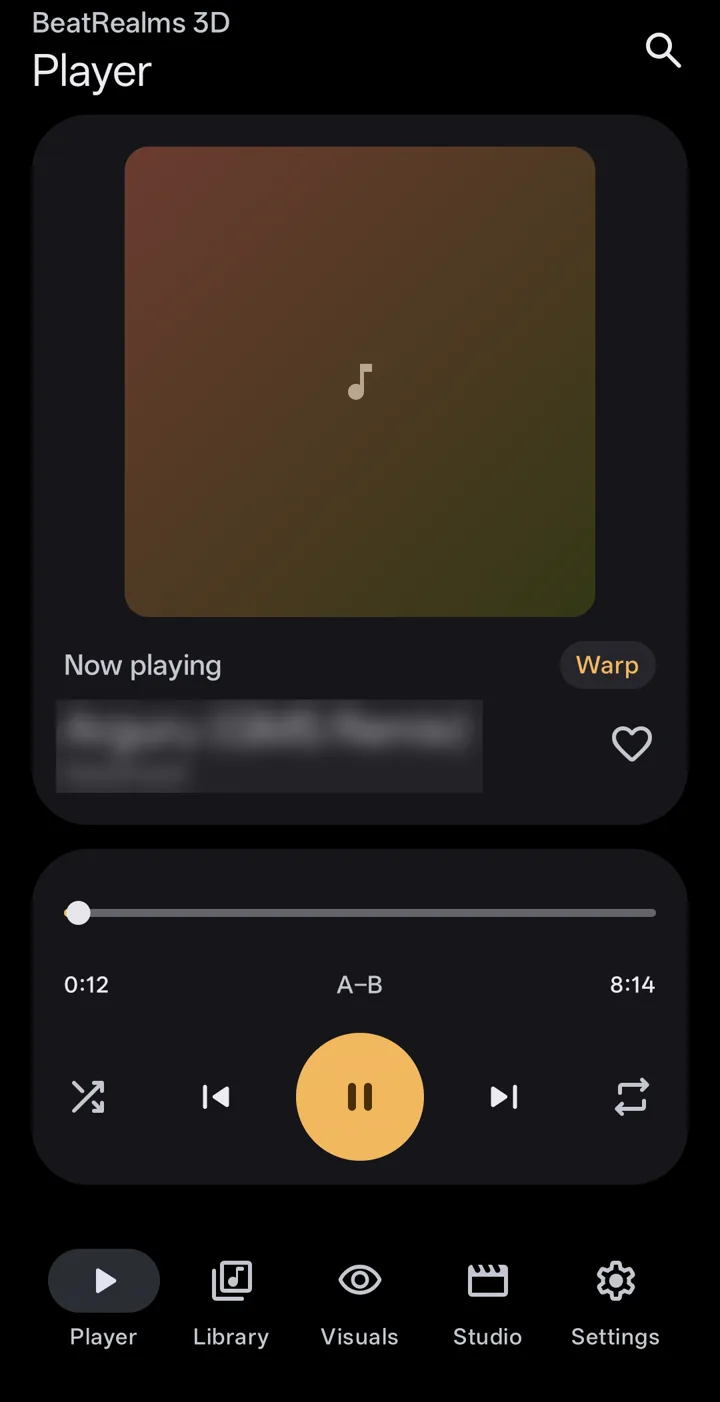
Play your first song
The first time you open BeatRealms 3D you see a short notice about flashing light. After it, a short tour points at the real buttons as you go.
- Tap Library in the tab bar. The first time, Android asks you to allow access to your music; BeatRealms only reads the audio Android already knows about.
- Tap any song to play it. The mini player appears above the tab bar.
- Tap Visuals to see the song as light.
- Swipe the mini player up whenever you want Player: the A–B loop, shuffle, repeat, the queue and lyrics.
Music on an SD card or in Downloads missing? Add that folder in Settings › Library.
Guide 02
Find your look on Visuals
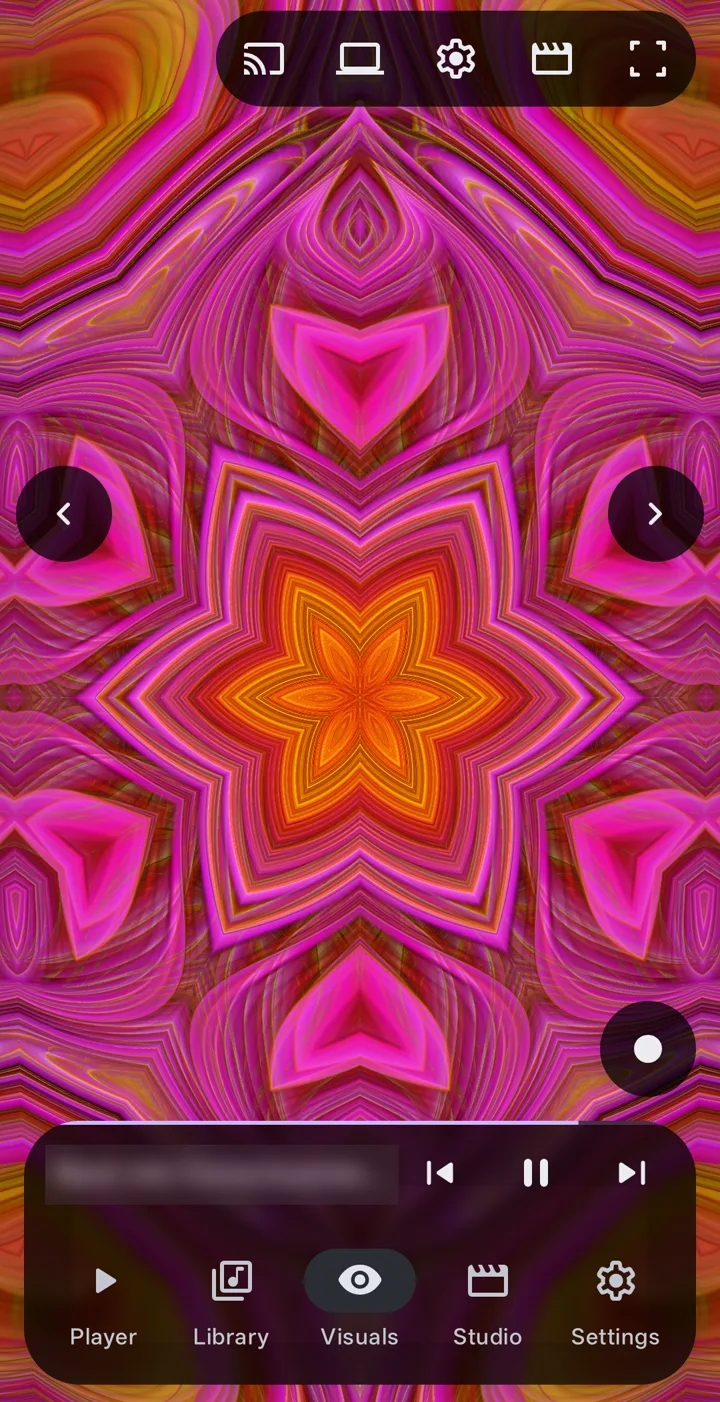
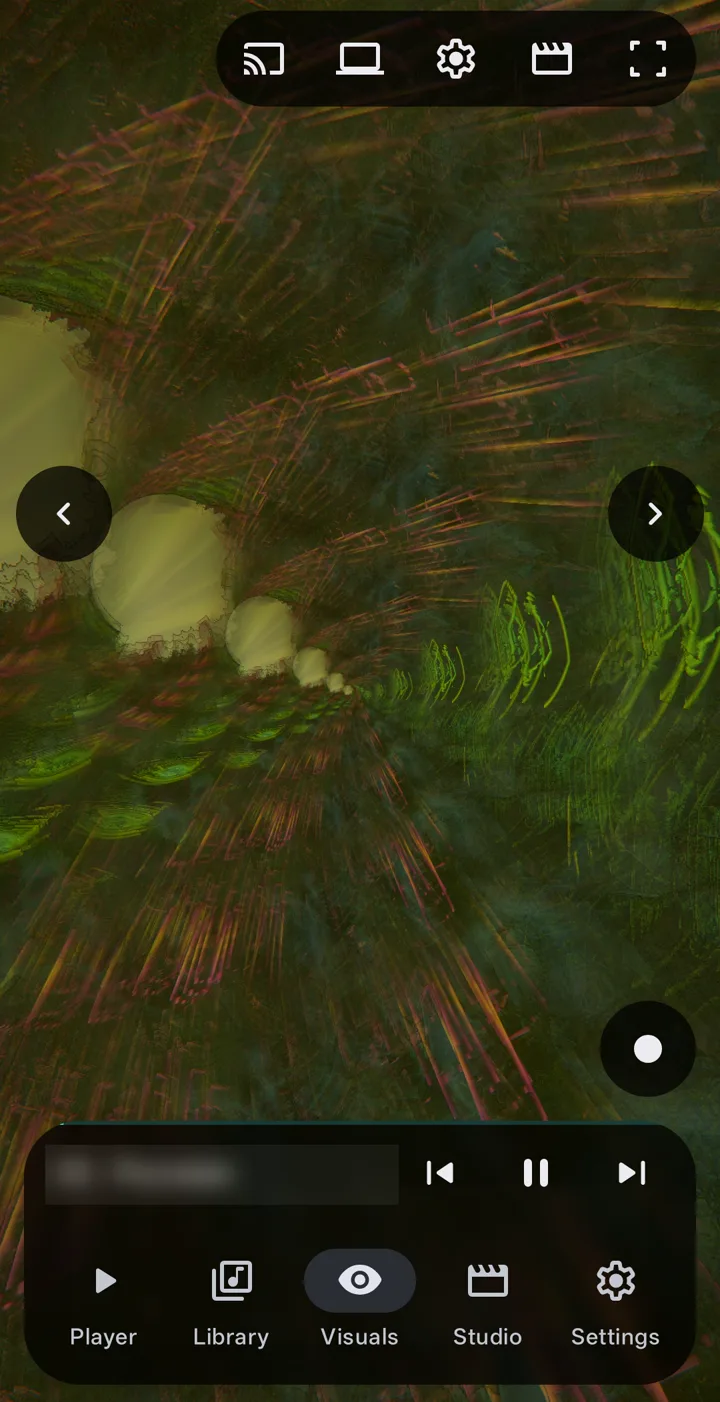
Visuals is your music as a full-screen picture. Its options sit in a sheet you can raise, lower or hide, and every button on the picture has a number below.
- Swipe sideways on the visual, or tap ‹ and ›, to step through the styles.
- Raise the options and open Styles. Pick a family from the list, then a style. Random, next to the list, picks one for you.
- Open Presets to apply a saved look, or MilkDrop for the classic presets.
- Double tap the visual to hide the options and see the picture alone.
- CastSend the visual and the music to a TV. Pro
- Show on a computerOpen the visual in a browser on the same Wi-Fi. Pro
- Visual settingsThe gear. Auto lives here: it changes the style with the music.
- StudioTurn what you see into a video.
- Full screenShows the visual alone. Double tap the visual to bring the options back.
- Previous and nextStep to the previous or next style. A sideways swipe does the same.
- RecordRecords the visual and the music as a video. Pro
- Mini playerThe song playing. Swipe it up to open Player.
- Tab barPlayer, Library, Visuals, Studio and Settings.
Free more than 60 styles, the first of every family. Pro all 334. A Pro style still plays while the app offers Pro, so you can see it first.
 1
2
3
4
5
6
6
7
8
9
Guide 03
Gestures on the visual
Every button on Visuals has a gesture twin, so you can play the app without looking for buttons. Change what each one does in Settings › Gestures & controls.
On Android TV the remote does the same: the D-pad steps through the styles in full screen, and the centre button shows or hides the options.
Guide 04
Customize a look
A style is the picture; a preset is a style plus every control around it. Customize changes the one on screen, and anything you change can be saved and shared.
- Swipe down on the visual for the quick knobs. Glow, Heat, Bend and Flow each move the whole look at once.
- For more, raise the options and open Customize. Each tab covers one part of the look: Look, Shape, Motion, Music and more. Tap a group to open it.
- Tap the dice to roll new settings for the tab you are on; the menu beside it rolls every tab. Undo takes them back.
- In the Music tab, decide what moves on a kick, a note or a drop.
- Happy with it? Open Presets and tap Save look. Long press a preset to share it, rename it or file it in a folder.
An empty section isn't broken: Customize hides the controls the style on screen can't use.
Free the quick knobs and the basic controls. Pro every control, knobs of your own with curves, waves and envelopes, and your own .milk presets.
Guide 05
Let Auto mode direct
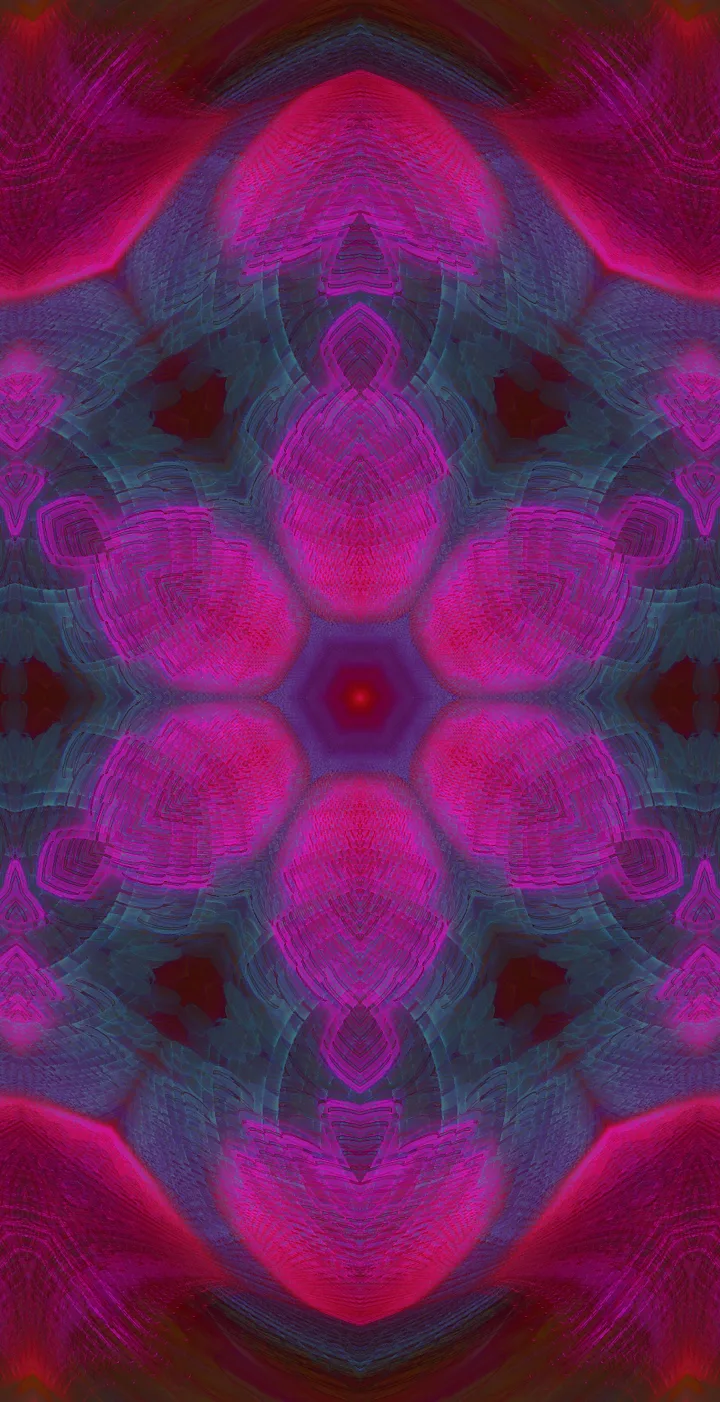
Auto mode is a director that follows the song: it changes the style, the camera and the motion as the music moves from one part to the next.
- Open Visuals and tap the gear at the top, Visual settings.
- Turn on Auto.
- Sit back. At a build-up or a drop, the picture moves on with the song.
- Your colours stay yours: Auto never narrows the palette you picked.
Free the first minute of each song. Pro the whole song.
Guide 06
Render a music video
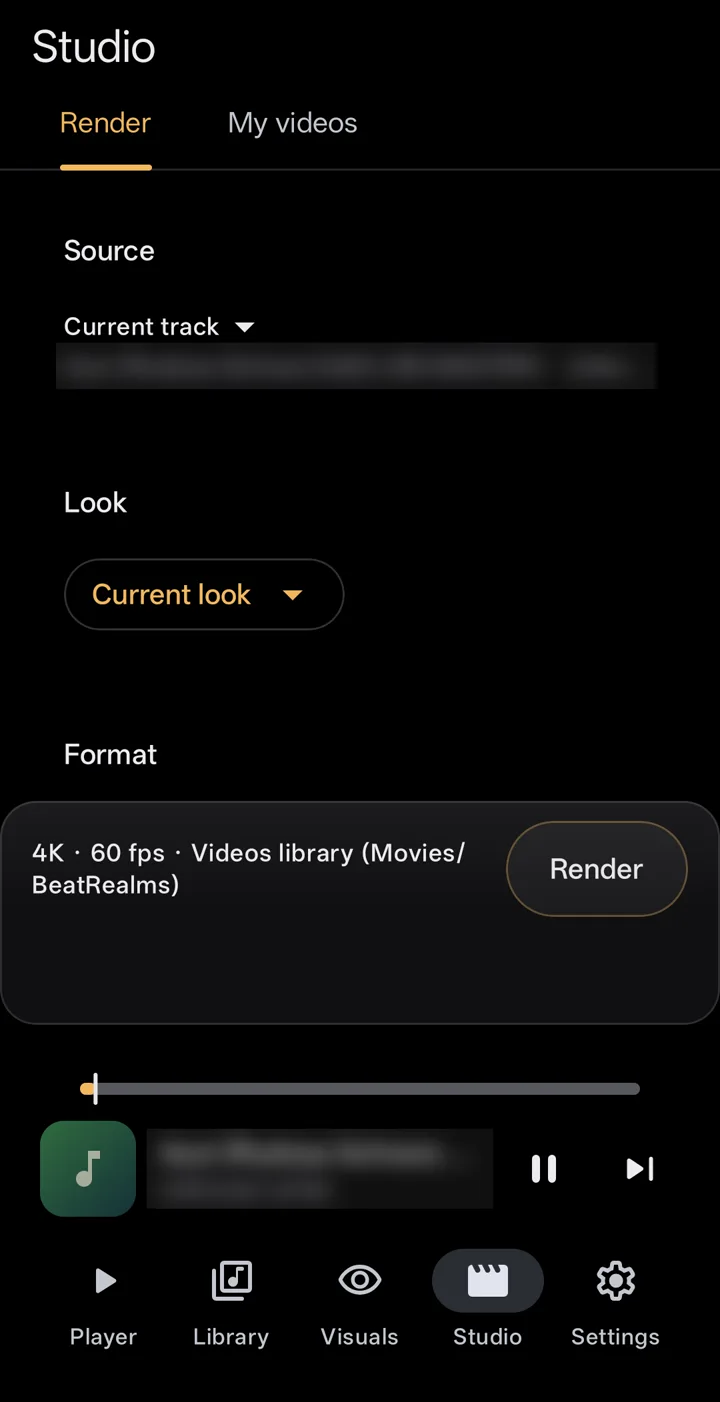
Studio turns any song on your phone into an MP4 with the visual over it, ready for YouTube, Shorts, TikTok or a big screen.
- Open Studio from the tab bar, or tap the Studio icon on Visuals. It opens on Render.
- Source: the song playing, the play queue, a playlist or tracks you choose. Queues and playlists render one track after another. Pro
- Look: the current look, or one of your presets.
- Format: start from a preset (YouTube, Shorts, TikTok, Feed, Square or Master), then change the size, the frame rate and the shape if you like.
- Length: the whole song, a part of it, or a seamless loop. Pro for loops.
- Tap Render. It keeps going if you leave the app. When it's done, open it, share it or show it in its folder.
Every video is saved to Movies/BeatRealms, or a folder you choose, and listed in Studio › My videos.
Free up to 1080p at 30 fps, one minute, with a watermark. Pro up to 4K at 60 fps, full length, no watermark.
Guide 07 Pro
Record a live take
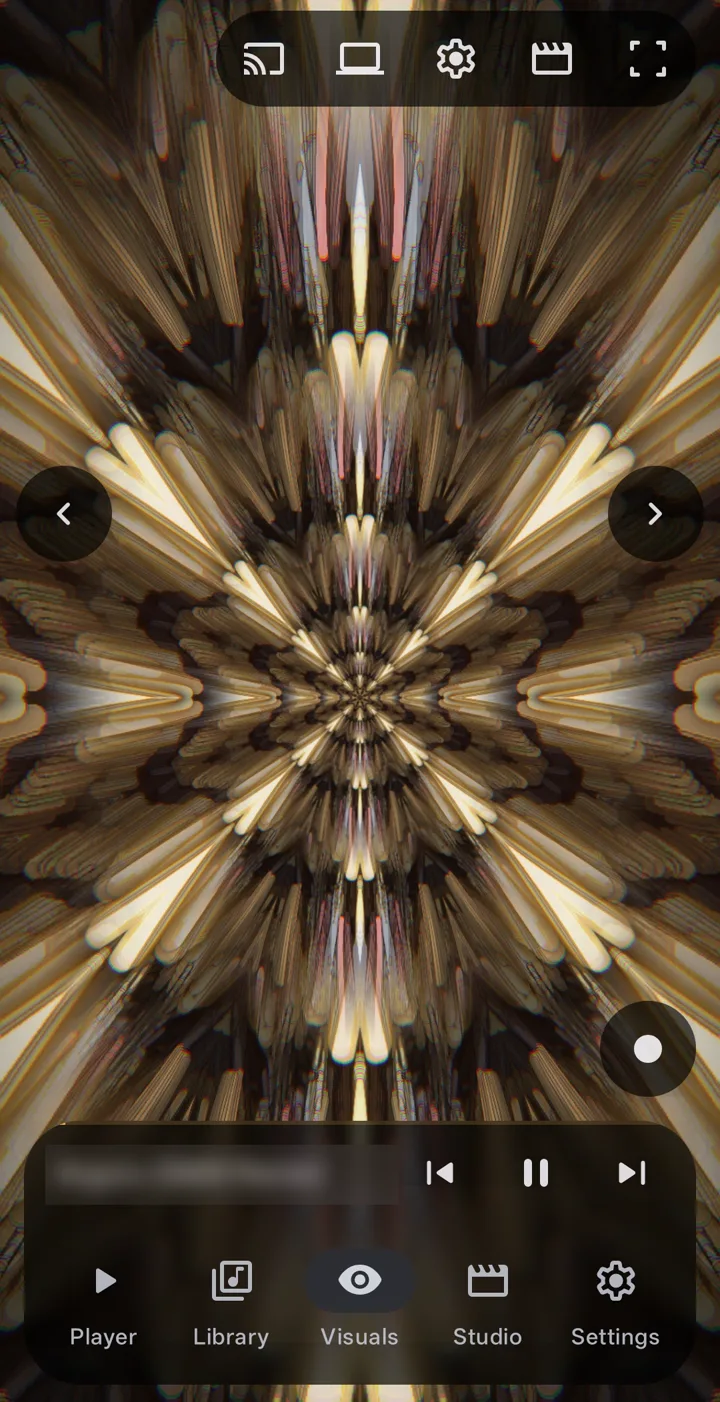
Record captures what happens on screen as you play it: the visual and the music, as a video.
- Play a song and open Visuals.
- Tap Record, bottom right, or hold the visual until the red ring fills.
- Perform: change styles, turn the knobs, touch the picture.
- Tap Record again to stop. The video is in Studio › My videos.
Recording settings are in Settings › Export & recording. Screenshots are free.
Guide 08 Pro
Show it on a TV or a computer
Put the visual on a bigger screen. The phone draws the picture and sends it, with the sound, over your own Wi-Fi.
- Connect the phone to the same Wi-Fi as the TV or the computer. Turn off a VPN if one is on.
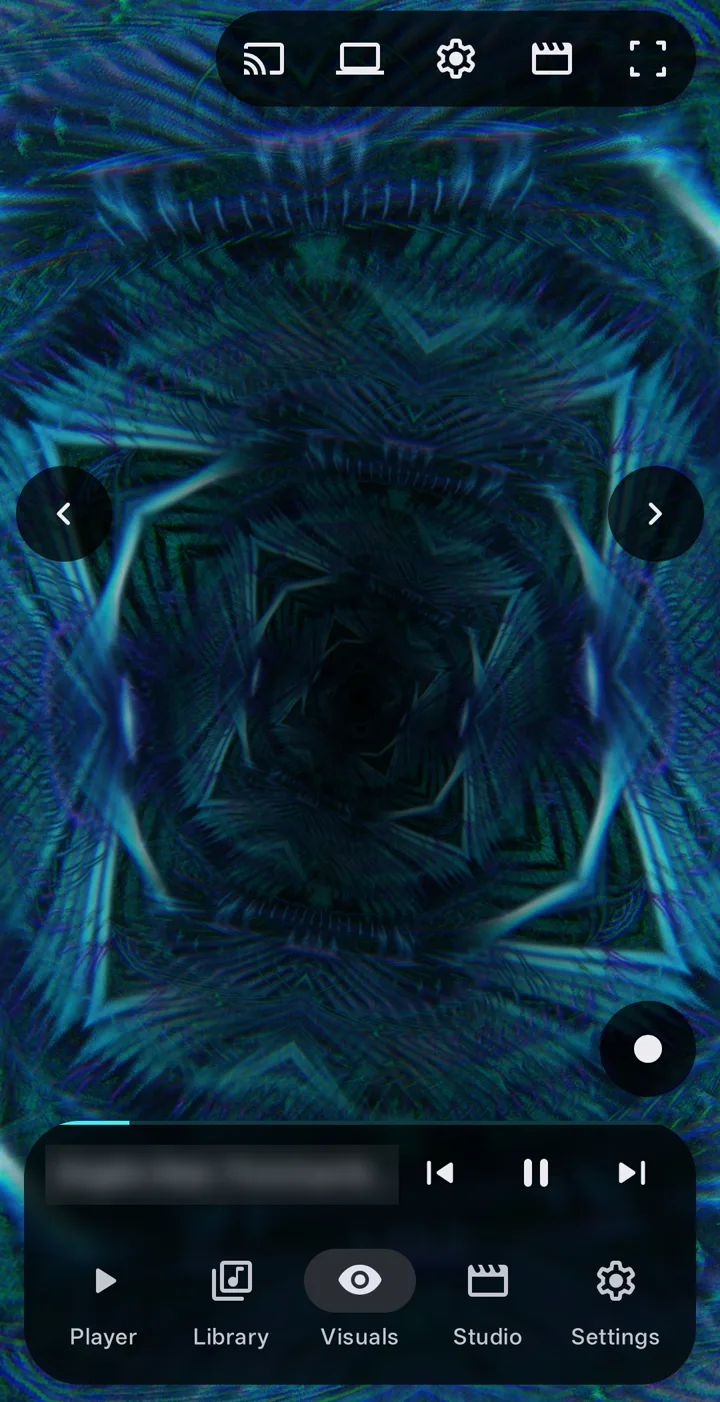
- TV: tap Cast at the top of Visuals and pick your TV. The picture and the sound play on the TV.
- Computer: tap Show on a computer and open the link in a browser on the computer, or scan its QR code.
- A screen on a cable: plug in an HDMI or USB-C display, or connect a wireless one, and it shows the visual alone. Choose it in Settings › Displays & casting.
To stop, use Stop casting in the notification. The sound comes back to the phone.
Guide 09 Pro
Set the live wallpaper and screen saver
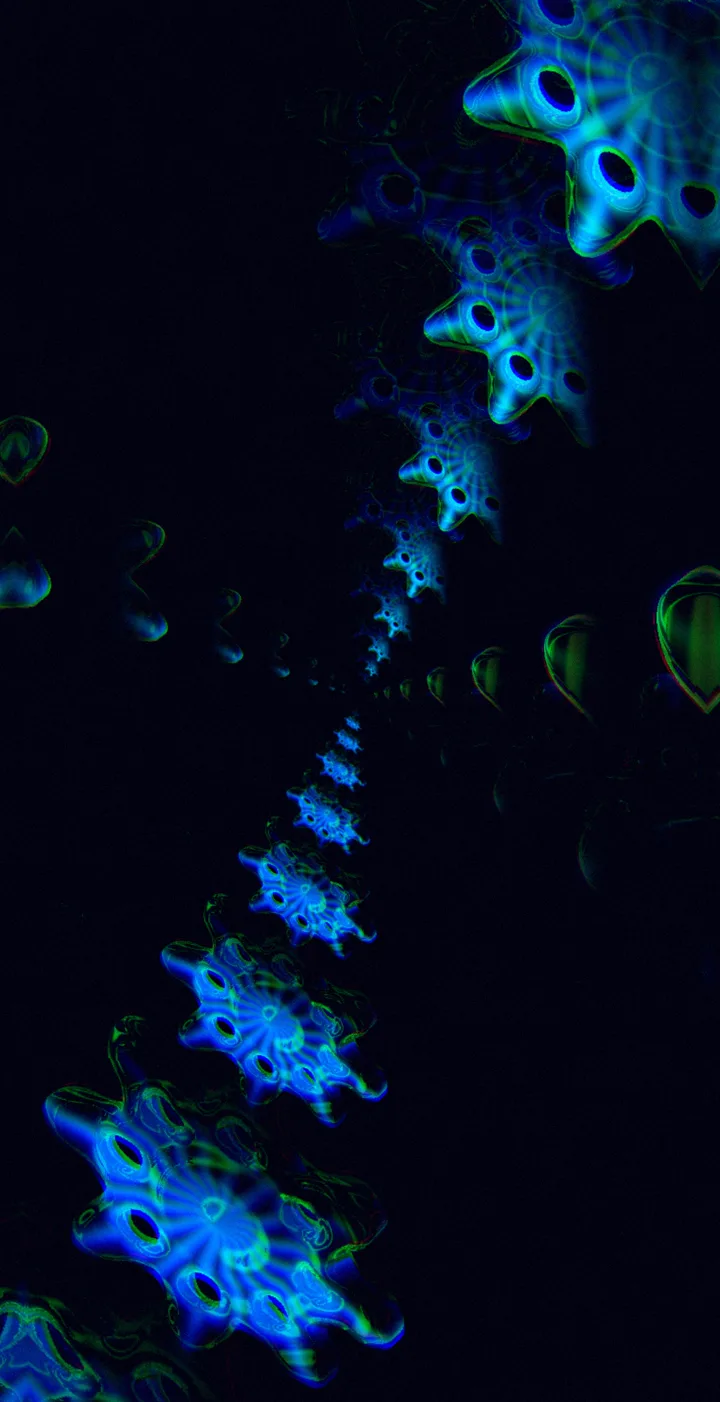
Your home screen can move with the music: the wallpaper shows your last BeatRealms style, reacting to what the app plays and drifting gently when it doesn't.
- Open Settings › Wallpaper & screen saver and tap Set as live wallpaper, then confirm in Android's preview.
- In the wallpaper's options, choose the Home screen, the Lock screen or both, and a Full picture or Edge glow.
- Turn on React to any app so it moves with music from any app.
- For the screen saver, pick BeatRealms 3D in Android's screen saver settings. It can show the time, the date and what's playing.
Edge glow keeps the middle black: easier on the battery on OLED screens, and your icons and clock stay easy to read. Rest when silent holds the wallpaper still after a few quiet seconds.
Free a still frame. Pro a moving wallpaper and the screen saver.
Guide 10
Visualize other apps or the room
The visuals don't have to follow BeatRealms' own player. They can follow another app's sound, or the microphone.
- Open Settings › Sound reaction.
- Choose Visualize other apps to follow the sound of another app. Android asks for its screen and audio capture permission each time you start.
- Or choose the microphone, Live input, to follow the room around you.
- The sound is analysed on the phone and never sent anywhere.
Movement but no music? Some music and video apps don't let other apps capture their sound, and Android honours that. Try another app, or the microphone.

Guide 11
Add timed lyrics
Lyrics scroll in time with the song, and a tap on a line jumps there. BeatRealms never looks lyrics up by itself.
- Put an .lrc file next to the song, with the same name and the .lrc extension. It shows up timed, following the music.
- Lyrics written into the file's own tags are read too.
- No lyrics yet? Tap Search the web: your browser opens. Save the words as an .lrc file.
- Tap Load .lrc and pick the file. The lyrics stay with that song.
Lyrics settings are in Settings › Library.
Guide 12
Tune the sound
The equalizer, bass boost and loudness shape what you hear, and the playback settings shape how one song gives way to the next.
- Play something first: the equalizer attaches to the sound once it starts.
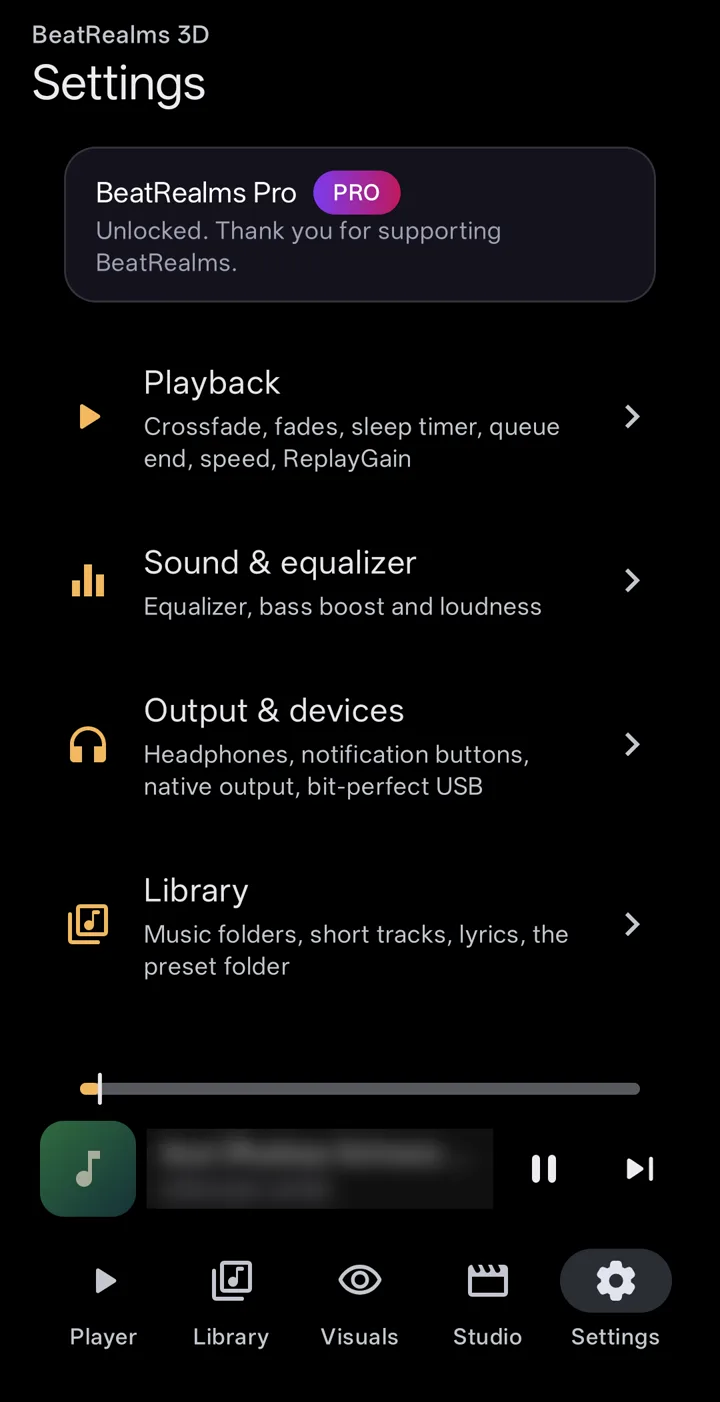
- Open Settings › Sound & equalizer.
- Pick a preset (Flat, Bass, Treble, Vocal, Rock or Electronic) or set the bands yourself, then add bass boost and loudness to taste.
- Crossfade, fades, the sleep timer, speed and ReplayGain are in Settings › Playback. A USB DAC and bit-perfect output are in Settings › Output & devices.
Guide 13
Back up, or move to a new phone
One file holds everything you made and set, so a new phone feels like yours at once.
- Open Settings › Backup, help & about and tap Export backup….
- The file holds your settings, presets, palettes and knobs, templates and projects, playlists, favourites, history, track edits and imported Milk presets. Your music files are not included.
- On the new phone, tap Import backup… and pick what to restore. What you pick replaces what is on that phone.
- Restart BeatRealms to load it.
Guide 14
Keep it smooth and cool
Heavy 3D on a phone makes heat. BeatRealms already lowers its own quality when the phone warms up, and lowers the frame rate first.
- On the marched 3D styles, turn down Detail in Customize. It's the biggest single lever, and it costs less of the look than you'd expect.
- Settings › Performance sets the quality for the screen, the wallpaper and the screen saver.
- Exports always render at full quality, whatever you set here.
Troubleshooting
Fix a problem
The questions people ask most once they're using the app. For what the app asks permission for, and why, see the features page.
My music doesn't show up in Library
BeatRealms reads the audio Android already indexes. If your music is on an SD card or in Downloads, add that folder in Settings › Library. Very short tracks can be hidden there too.
The picture stops when the music stops
That's on purpose: no sound, no visuals. When the music stops, the picture comes to rest, and it moves again when the sound comes back.
Another app's music doesn't move the visual
Some music and video apps don't let other apps capture their sound, and Android honours that; the capture runs but hears silence. Try another app, or the microphone.
Cast can't find my TV
Connect the phone to the same Wi-Fi as the TV and turn off any VPN, then try again. Cast to TV and Show on a computer are part of Pro.
The equalizer says to play something first
The equalizer attaches to the sound once it starts. Play a song, then open Settings › Sound & equalizer again.
The live wallpaper is a still frame
A moving wallpaper is part of Pro. It also holds a still frame while Android's battery saver or Remove animations is on, and while an app or the notification shade covers it.
Where are my videos?
In Studio › My videos, and on the phone in Movies/BeatRealms, or the folder you chose.
How do I see the tour again?
Open Settings › Backup, help & about › Tutorials to replay any chapter, or turn the tips on and off.
Try it with your own music
Free to install. No account, no ads.